SSD Firmware Update Guide: Why and How to Do It
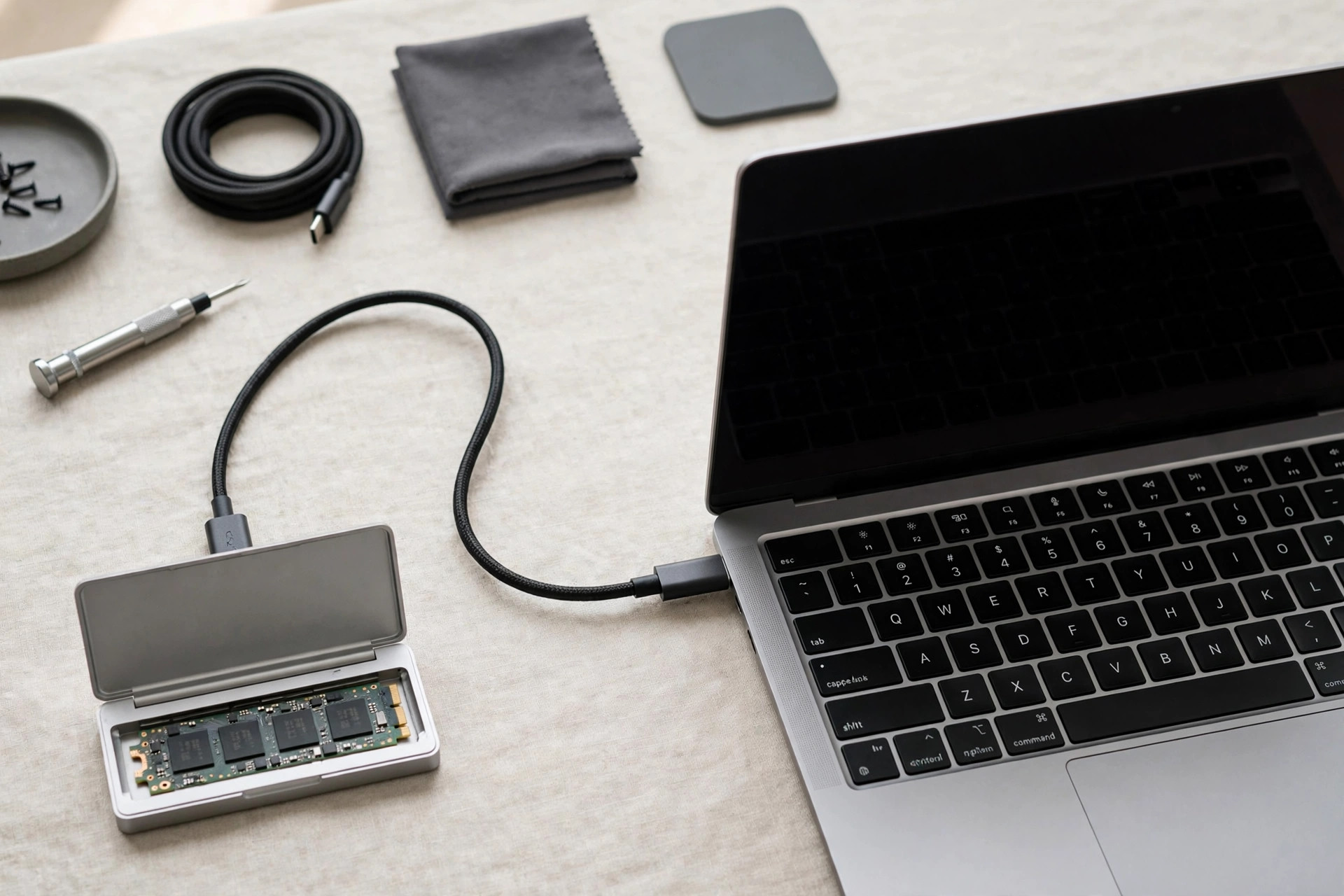
SSD firmware is the invisible software running on your drive's controller — and unlike your operating system, it never nags you to update. Most users never touch it, which is usually fine. But sometimes a firmware update fixes exactly the problem you have been blaming on Windows, your motherboard, or bad luck. This guide explains when an SSD firmware update is worth doing, when to leave well enough alone, and how to do it without risking your data.
What SSD firmware actually does
Firmware controls everything the controller does: how data is written to NAND, how wear leveling distributes writes across cells, how the DRAM cache behaves, when thermal throttling kicks in, and how the drive talks to your system over NVMe or SATA. A firmware bug can cause stuttering, disconnections, or data corruption — symptoms that look exactly like a dying drive.
Manufacturers release firmware updates to fix controller bugs, patch security vulnerabilities, improve compatibility with new platforms, and occasionally unlock performance. Unlike a driver update, firmware lives on the drive itself, so it follows the SSD if you move it to another machine.
When you should update
Update when there is a concrete reason, not just because a new version exists:
You are experiencing a known issue. Random disconnects, the drive vanishing after sleep, or severe stuttering under load are classic firmware-bug symptoms. Check the manufacturer's release notes — if your symptom is listed as fixed, updating is the obvious move.
A security advisory affects your drive. Firmware-level vulnerabilities are rare but serious, since they can undermine hardware encryption. If the vendor publishes a security fix, treat it like any other security patch and apply it promptly.
You are on a brand-new platform. Early PCIe 5.0 SSD adopters learned this the hard way: first-generation firmware on new controllers sometimes had compatibility quirks with certain motherboards that later revisions resolved.
The release notes promise something you need. Improved sustained write performance, better thermal behavior, or compatibility with a new OS power state are legitimate reasons — if the improvement matches your workload.
When you should skip it
| Situation | Update? | Why |
|---|---|---|
| Drive works perfectly, update only adds minor tweaks | Skip | No benefit, small but nonzero risk |
| Known bug matches your symptoms | Update | Direct fix for a real problem |
| Security advisory issued | Update | Firmware vulnerabilities bypass OS protections |
| Beta firmware, drive is stable | Skip | Betas can introduce new issues; wait for final |
| Drive is your only copy of important data | Back up first, then decide | Never update without a verified backup |
| Laptop on battery with no charger handy | Skip for now | Power loss mid-flash can brick the drive |
The golden rule: firmware updates are not performance upgrades you apply on schedule. They are fixes you apply when needed. A stable drive with no matching release-note entry gains nothing from an update.
Before you start: non-negotiable precautions
Back up everything that matters. Firmware updates are designed to preserve data, and they almost always do — but "almost" is not a backup strategy. A full drive image means even a worst-case failure costs you an afternoon, not your files. If you do not have a current image, follow our drive cloning guide first; the same process that migrates to a new SSD works perfectly as a pre-update safety net.
Use stable power. On a desktop, do not update during a storm or on an unprotected outlet. On a laptop, plug in the charger and confirm the battery is substantially charged. Interrupting a firmware flash is the single most common way updates go wrong.
Close everything else. Shut down background applications, especially anything that hammers the drive — no defragmentation, no antivirus scans, no game downloads running in parallel.
How to update: the manufacturer toolbox method
The standard path is the SSD maker's own management software. The names differ, but the flow is nearly identical:
Step 1 — Install the vendor toolbox. Download it from the manufacturer's official support page, not a third-party mirror. Install and launch it with administrator rights.
Step 2 — Identify your drive. Confirm the model name and current firmware version match the drive you intend to update. If you have multiple SSDs, double-check you have selected the right one.
Step 3 — Read the release notes. The toolbox usually links to them. Verify the new version actually addresses something relevant to you, and check for any warnings — some updates require the drive to have a minimum free space or cannot be rolled back.
Step 4 — Run the update and wait. Start the flash and leave the machine alone. Do not sleep, hibernate, or restart. The process typically takes one to five minutes; the drive may disappear from the system briefly and reappear.
Step 5 — Verify. Reopen the toolbox and confirm the new firmware version is reported. Run a quick SMART check to confirm the drive is healthy, then use the system normally for a day before declaring victory.
Alternative methods: bootable media and Linux
Some vendors provide bootable ISO images for updating drives in systems where the toolbox cannot run — servers, machines without a supported OS, or drives that are not the boot device. You write the ISO to a USB stick, boot from it, and follow a minimal menu. This method is also the fallback when a Windows-based update fails partway.
On Linux, fwupd supports firmware updates for a growing list of NVMe drives directly from the package manager ecosystem. Run fwupdmgr get-devices to see if your drive is supported, then fwupdmgr update. For enterprise drives, vendors often ship Linux CLI utilities with the same flash capability as their Windows tools.
Common errors and how to handle them
| Error / symptom | Likely cause | Fix |
|---|---|---|
| "Firmware is already up to date" | Drive shipped with the latest revision | Nothing to do — you are current |
| Update fails at a fixed percentage | Background I/O or unstable connection | Close all apps, reseat the drive, retry; use the bootable ISO if it persists |
| Drive not detected by the toolbox | RAID mode, USB enclosure, or VM passthrough | Connect the drive directly via NVMe/SATA in AHCI mode, not through RAID or USB |
| System freezes during the flash | Power or thermal event mid-update | Wait 10 minutes before touching anything; if still frozen, hard reset and check whether the drive is detected in BIOS |
| Drive not detected after update | Interrupted flash or incompatible image | Try the drive in another machine; contact vendor support — some drives have a recovery mode via the bootable tool |
One pattern worth knowing: many "failed update" reports trace back to the drive sitting behind a RAID controller or inside a USB enclosure, where the toolbox cannot talk to it directly. Moving the drive to a direct motherboard slot for the duration of the update solves most of these.
Thermal throttling and firmware
Some firmware revisions adjust the thermal throttling curve — the temperature at which the controller slows down to protect itself. If your drive throttles under sustained writes even with decent airflow, check whether a newer firmware revision addresses thermal behavior before buying hardware. That said, firmware cannot repeal physics: a Gen5 drive under continuous load still needs real cooling, so review our SSD heatsink guide if temperatures are your actual problem.
Who should update — and who should skip
Update if you: have a symptom listed in the release notes, received a security advisory, are troubleshooting disconnects or stuttering, or just built on a brand-new platform with early firmware.
Skip if you: have a stable system with no matching release-note entries, are being offered a beta, cannot back up first, or are on unreliable power. A working drive is not improved by a firmware version number going up.
Enterprise and server operators: treat firmware like any change control — test on a non-production drive first, schedule a maintenance window, and never flash an entire array at once.
Firmware vs drivers vs BIOS: what updates what
Storage updates come in three layers, and confusing them leads to wasted effort. Firmware lives on the SSD itself — it is the drive's internal operating system, controlling the controller, NAND management, and error correction. Updating it changes how the drive behaves on any machine it is installed in.
Drivers live in your operating system. The NVMe driver (Microsoft's built-in stornvme, or Samsung's and Intel's optional vendor drivers) controls how Windows talks to the drive. A driver update can fix OS-level issues like poor queue-depth handling or missing features, but it cannot fix a bug inside the drive's own firmware. If the vendor toolbox says your firmware is current but the release notes for a driver mention your symptom, you were looking at the wrong layer.
BIOS/UEFI firmware lives on the motherboard and governs the platform: PCIe link training, lane allocation, power states, and how the board initializes the drive at boot. The infamous "drive disappears after sleep" class of problems has been fixed at all three layers at different times by different vendors — which is why methodical troubleshooting updates one layer at a time, starting with whichever layer's release notes mention your exact symptom.
The practical rule: firmware for drive-internal bugs, drivers for OS communication issues, BIOS for platform and boot problems. When in doubt, check release notes at all three levels before changing anything.
Reading release notes like a technician
Vendor release notes are terse by design, but they contain everything you need if you know how to read them. Here is how to decode the common patterns:
Version numbering. Most vendors use a scheme where the leading digits indicate the controller platform and the trailing digits the revision. A jump from 3.x to 4.x may indicate a substantial rework; a move from 4.1 to 4.2 is almost certainly a targeted fix. If your drive is on 4.1 and the notes for 4.2 list your symptom, that is a high-confidence update.
"Improved system stability." This phrase, beloved by every firmware engineer, usually means "fixed a crash or hang we can reproduce but cannot describe simply." It is worth applying if you experience any instability, even if your exact symptom is not named.
"Improved compatibility with [chipset/platform]." This is the one early adopters watch for. If you built on a new platform within the last year and see this entry, update — the fix was probably written for exactly your configuration.
Security entries (CVEs). These are non-negotiable. A firmware CVE can undermine self-encrypting drive protections or allow privilege escalation through the storage stack. Apply promptly, and check whether the advisory recommends a secure erase or PSID revert as part of remediation — occasionally the fix requires re-provisioning the drive's security state.
What is not in the notes matters too. If three revisions pass with no mention of anything resembling your setup, your drive is in its stable maturity phase. Leave it alone and check back in six months.
Enterprise and fleet firmware management
Managing firmware across dozens or hundreds of drives is a different discipline from updating one desktop SSD. The principles that keep fleets safe:
Never flash the whole fleet at once. Stage the rollout: a canary group of non-critical systems first, then a wider wave after a week of clean operation, then the remainder. A bad firmware revision that bricks 5% of drives is a bad afternoon on ten machines and a disaster on a thousand.
Pin versions in your imaging process. When you deploy a standard OS image, record the firmware version it was validated against. New drives arriving with newer firmware should be checked against the same validation suite before they join the fleet — "newer" is not automatically "compatible with our stack."
Use vendor fleet tools, not the consumer toolbox. Enterprise drive vendors ship command-line utilities designed for scripting and remote execution, with return codes your automation can act on. The consumer GUI toolbox is fine for one machine and miserable for fifty.
Schedule around write load. Flashing firmware on a drive under heavy production I/O is asking for trouble. Maintenance windows exist for a reason — quiesce the workload, flash, verify, and return to service.
The 2026 firmware landscape: what has changed
A few trends have reshaped the firmware picture over the last two years. First-generation Gen5 controllers have matured: the compatibility quirks that plagued early adopters are largely resolved in current revisions, so a Gen5 drive bought today on recent firmware is a far safer proposition than the same hardware was at launch. If you bought early and never updated, you are likely several meaningful revisions behind.
Second, security has moved up the priority list. With hardware encryption now standard on most drives, firmware CVEs get more attention from vendors and faster patches — but they also demand more attention from users, since an unpatched encryption flaw is worse than no encryption at all (it provides false confidence).
Third, fwupd support on Linux has quietly become excellent. A growing list of consumer NVMe drives can now be updated from the Linux desktop with the same ease as a Windows toolbox, which removes the last practical excuse for running ancient firmware on a dual-boot or Linux-only machine. The net effect of all three trends: the "never touch firmware" advice of five years ago has softened into "check once a year and update with intent." The risk of updating has fallen as vendors improved their tooling, while the cost of running truly ancient firmware — missed security fixes, unresolved quirks — has quietly risen.
Firmware update methods compared
| Method | Ease | Works when | Watch out for |
|---|---|---|---|
| Vendor toolbox (Windows) | Easiest — guided GUI | Drive is the boot or secondary drive in Windows | Requires admin rights; close background apps first |
| Bootable ISO | Moderate — USB boot required | Toolbox cannot see the drive, or no supported OS installed | Back up the ISO workflow; some ISOs are UEFI-only |
| fwupd (Linux) | Easy — two commands | Drive is in the fwupd supported-device list | Not all vendors participate; check support first |
| Vendor CLI (enterprise) | Technical — scripted | Fleet management, servers, automation | Read the exit codes; test on one drive first |
FAQ
Will a firmware update erase my data?
No — firmware updates are designed to preserve all user data. But "designed to" is not a guarantee, which is why a verified backup before updating is mandatory, not optional.
Can I roll back SSD firmware if the new version causes problems?
Usually not. Most consumer SSD vendors do not support firmware downgrades, and some updates explicitly state they are one-way. This is the strongest reason to only update when the release notes justify it.
How do I find my current SSD firmware version?
On Windows, open the vendor toolbox or check Device Manager → disk drive → Properties → Details → Hardware Ids. On Linux, sudo nvme id-ctrl /dev/nvme0 | grep -i firmware shows it instantly.
Do I need to update firmware on a brand-new SSD?
Check once after installation — drives can sit in warehouses for months, and a new-in-box drive may ship with firmware several revisions old. One check at install time, then leave it alone unless a reason appears.
Is it safe to update firmware on an encrypted drive?
Generally yes, but suspend BitLocker or similar OS-level encryption first if the vendor recommends it, and make sure you have your recovery key recorded. Hardware-encrypted drives handle firmware updates transparently, but a recovery key on hand removes all drama.
How long does a firmware update take?
The flash itself typically takes one to five minutes. Budget fifteen minutes total: close applications, run the update, verify the new version, and do a quick SMART check afterward. If a vendor tool quotes longer, it is usually including a verification pass — let it finish.
Can I update firmware on a secondary or data-only drive?
Yes, and it is often simpler than updating the boot drive — there is no OS running from the target, so fewer things can interfere. The same precautions apply: back up the data on it first, ensure stable power, and verify the version afterward.
What happens if power fails during the update?
It depends on when the failure hits. Most modern drives have a protected bootloader region, so an interrupted flash usually leaves the drive detectable but running the old (or no) operational firmware — recoverable via the vendor's bootable tool. A failure at the worst possible moment can brick the drive beyond home recovery, which is why stable power is the number-one precaution, not an afterthought.
Do I need to update firmware on an external or portable SSD?
The same logic applies as internal drives: update if the release notes address your issue. The extra wrinkle is connectivity — update over a direct, stable USB connection (preferably USB-C/Thunderbolt, not through a hub), and confirm the vendor toolbox can see the drive through the enclosure's bridge chip before starting. If the toolbox cannot detect it externally, move the drive to an internal slot for the update.