SSD Caching for NAS: Do You Need It?
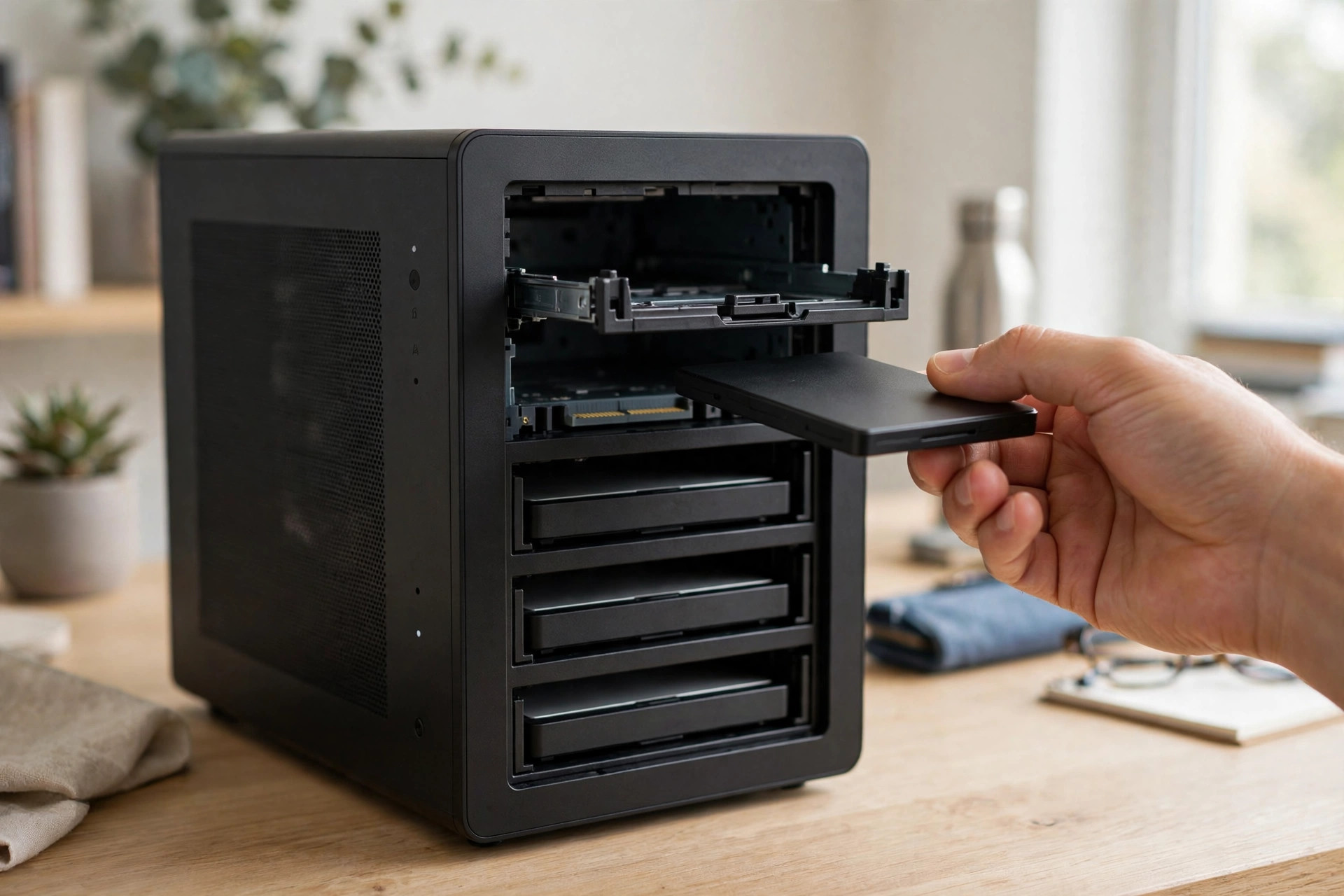
Your NAS is full of hard drives, and someone told you an SSD cache will make it fly. Sometimes they are right. Often, the money is better spent elsewhere. SSD caching for NAS accelerates specific workloads dramatically and does absolutely nothing for others — and choosing wrong means burning expensive SSD endurance for zero benefit.
This guide explains how NAS SSD caching actually works, the workloads where it shines, how to size it, why cache SSDs die young, and when to skip caching for an all-flash pool or simple tiering instead.
How NAS SSD caching works
A cache sits between your clients and the slow HDD volume, holding copies of hot data on flash. Read cache stores frequently accessed blocks: the first read comes from disk, subsequent reads come from SSD at 10–50x the speed. It is safe — the cache holds copies, so losing it loses nothing but speed.
Write cache (write-back) acknowledges writes as soon as they hit SSD, then destages them to HDD in the background. This makes writes feel instantaneous and smooths out bursty workloads — but it introduces risk: data acknowledged but not yet on disk is vulnerable to power loss. Serious implementations pair write cache with UPS protection and mirrored cache SSDs. Never run write-back cache on a single unprotected SSD holding data you cannot afford to lose.
Most NAS platforms (Synology, QNAP, TrueNAS, Unraid) support both modes, with M.2 NVMe slots increasingly standard on mid-range units. The cache is managed automatically — you allocate the SSDs, and the system promotes hot data itself.
Read vs read-write cache: the workload numbers
"Cache" is not one thing. Read cache and read-write (write-back) cache behave so differently that they deserve separate evaluations against your actual workload:
| Workload | Read cache effect | Read-write cache effect | Typical hit rate |
|---|---|---|---|
| VM lab (10 VMs, shared base images) | Dramatic — boot storms vanish | Dramatic — write bursts absorbed | 85–95% |
| Multi-user file share (office docs) | Strong — same files re-read daily | Moderate — writes are small | 80–90% |
| Photo library (Lightroom catalog) | Strong — metadata/thumbnails hot | Minimal — mostly reads | 75–90% |
| Database (small, active) | Strong | Strong — latency-sensitive writes | 85–95% |
| Media streaming (Plex/Jellyfin) | Negligible for streams; helps metadata | Negligible | 20–40% |
| Bulk backup target | None — written once, rarely read | None — sequential streams bypass cache | <10% |
| Surveillance recording (NVR) | None — constant sequential writes | Harmful — wears SSD, no benefit | <5% |
The pattern: cache rewards repeated access to the same blocks. Virtual machines re-read the same OS blocks thousands of times; office workers open the same shared files daily; databases hammer the same indexes. Hit rates above 80% mean four out of five reads never touch spinning disks — the NAS feels like an all-flash array for a fraction of the cost.
Sequential workloads are the opposite: a backup stream is read once, in order, and never again. Good cache implementations detect sequential streams and bypass them, but the cache still does nothing useful. Surveillance recording is the worst case: a 24/7 write stream that bypasses read cache entirely while grinding through SSD write endurance for zero gain.
When caching helps — and when it does nothing
Caching accelerates random I/O on hot working sets: virtual machines, databases, multi-user file shares where many people touch the same files, and photo libraries with heavy thumbnail/metadata access. A VM lab that crawls on HDDs transforms with even a modest read cache, because hypervisors re-read the same blocks constantly.
Caching does nothing for sequential bulk transfers: copying a 500GB video archive streams straight through the cache (or bypasses it entirely — good implementations detect sequential streams and skip caching them). It does nothing for cold data you touch once. And it does nothing if your working set exceeds the cache size — a 400GB active dataset on a 256GB cache just churns, wearing the SSD for no gain.
The honest test: slow on many-small-files work but fine on big copies means caching will help. If big copies are the problem, you need faster disks or 10GbE networking, not cache. For choosing the underlying drives, our 2TB vs 4TB SSD capacity guide covers the sizing logic that applies to NAS volumes too.
Cache configurations compared
| Configuration | What it accelerates | Risk if SSD fails | SSD count | Best for |
|---|---|---|---|---|
| Read-only cache | Reads of hot data | None — copies only | 1 | Safe default; file shares, media metadata |
| Read-write cache | Reads and writes | Data loss without UPS + mirror | 1–2 | VMs, databases with protection |
| Mirrored read-write | Reads and writes | Survives one SSD failure | 2 | Production VM storage |
| All-flash pool | Everything, always | Standard RAID risk | 2+ | When cache is not enough |
Read-only cache is the safe starting point for almost everyone: meaningful speedup for hot reads, zero data-loss risk, one SSD. Graduate to read-write only when write latency is the measured bottleneck and you have UPS plus mirrored SSDs. The KC3000 vs FURY Renegade comparison is a useful reference for picking the NVMe drives themselves — cache duty rewards sustained-write consistency over peak benchmark numbers.
Cache sizing: the math
Cache sizing follows the working set, not the volume size. The working set is the data actually touched during a typical day or week — for a VM host, the VM images; for an office share, the active project folders; for a photo library, the catalog plus recent shoots. Everything else on the NAS is cold storage that cache should ignore.
The sizing formula:
Cache size = working set × 1.5 to 2
The multiplier provides headroom for promotion churn — the cache constantly evicts cooling blocks to make room for warming ones, and without headroom that churn becomes thrashing. A 40TB NAS serving a 300GB active dataset needs roughly a 500GB–1TB cache. A 200GB working set is well served by a single 500GB SSD; a 1TB working set wants 2TB of cache, ideally across two SSDs for bandwidth.
Two rules bound the formula. Oversizing beyond 2x the working set buys nothing — once the hot dataset fits, extra cache is empty flash. Undersizing below ~1.2x buys thrashing: the cache fills, evicts still-warm data, and re-promotes it in a loop — each cycle costing SSD writes while the hit rate stays mediocre. If you cannot afford 1.5x your working set, skip the cache: a thrashing cache wears the SSD faster than no cache at all.
Measure before buying. If you already run a cache, the NAS reports the hit rate — 90%+ means sizing is right, under 70% means the working set exceeds the cache or the workload is not cacheable. Without a cache, estimate from the workload: add up VM image sizes, active database files, and daily-touched shares. When in doubt, start with a single mid-size SSD in read-only mode, check the hit rate after a week, and expand only if the data says so.
Endurance: why cache SSDs die young
Cache workloads are write-intensive by nature — every promoted block is a write, and write-back caching multiplies write amplification. A consumer SSD rated at 600 TBW can burn through its endurance in a couple of years under heavy cache duty, then fail without the graceful degradation you would hope for.
This is the strongest argument for purpose-chosen cache SSDs: drives with high endurance ratings (1 DWPD or better), power-loss protection, and consistent sustained-write behavior. A dead cache SSD at 2 AM is not where you want to economize. Our SSD endurance in the AI era article explains DWPD ratings and why write-heavy roles demand them.
Every NAS platform reports SSD wear percentage — set alerts at 70% and plan replacement at 80%. Cache SSDs are consumables; budget them like consumables.
Endurance math: how long will the cache SSD actually live?
Endurance is not a vibe — it is arithmetic. The formula:
Years of life = TBW rating ÷ (daily writes in TB × 365)
Daily writes are the hard part to estimate, but you can bound them. Read-only cache writes roughly the working-set churn per day: if 50GB of hot data changes daily, that is ~50GB of writes. Read-write cache adds the full write workload — a VM lab writing 200GB/day to write-back cache burns 200GB of SSD endurance daily, plus churn.
| Scenario | Daily cache writes | 600 TBW consumer SSD | 1,400 TBW high-endurance SSD |
|---|---|---|---|
| Read-only cache, office share | ~30 GB | ~55 years | ~128 years |
| Read-only cache, VM lab | ~100 GB | ~16 years | ~38 years |
| Read-write cache, VM lab | ~300 GB | ~5.5 years | ~13 years |
| Read-write cache, heavy database | ~800 GB | ~2 years | ~4.8 years |
The table tells the real story: read-only cache barely dents endurance — almost any SSD survives it. Read-write cache is where drives go to die, and where the endurance premium pays for itself. Note that write amplification makes reality worse than the table: the NAS writes 1.2–2x more to flash than the workload suggests, so derate these lifespans accordingly.
QLC drives deserve a special warning: their sustained write speeds collapse once the SLC cache fills — exactly the condition a busy cache creates. A QLC cache SSD under write-back load can slow to HDD-like speeds, defeating the entire purpose. TLC minimum for cache duty; high-endurance TLC or better for write-back.
Setup walkthrough: Synology, QNAP, and TrueNAS concepts
The exact clicks differ by platform, but the setup logic is the same everywhere.
Synology DSM: install M.2 NVMe SSDs, then Storage Manager → SSD Cache → Create. DSM asks which volume to accelerate and offers read-only or read-write (the latter requires two SSDs for its enforced RAID 1 mirror). Allocate cache to the volume holding hot data — not the media archive. DSM reports per-cache hit rates where you validate sizing after a week.
QNAP QTS/QuTS hero: Storage & Snapshots → Cache Acceleration. QNAP supports read-only and read-write cache and lets you pin specific shared folders. On QuTS hero (ZFS), the SLOG device is a specialist role — it only accelerates sync writes (NFS, databases) and needs a low-latency, power-loss-protected SSD; do not confuse it with general cache.
TrueNAS (ZFS): add an L2ARC device for read cache and, separately, a mirrored SLOG for sync writes. ZFS is opinionated: L2ARC only helps when ARC (RAM cache) is already maxed, because RAM is always the faster tier. Max out RAM before adding L2ARC — the most ignored and most correct piece of NAS caching advice in existence.
Across all three: create the cache after the volume holds data, enable it during a representative workload week (not during initial bulk ingest, which pollutes the cache with cold data), and check the hit rate before declaring victory.
When cache makes things worse
Cache is not free even when it is idle — a badly configured cache actively harms performance. The failure modes:
Thrashing: a cache smaller than the working set spends all its time evicting warm data and re-promoting it. Each cycle costs SSD writes and CPU, the hit rate sits at 40–60%, and latency is worse than no cache. If the hit rate will not climb above 70% after a week, the cache is too small — remove it or enlarge it.
Write-back without protection: a single unmirrored write-cache SSD with no UPS is a data-loss device, not a performance device. One power cut during destage and acknowledged writes vanish — the most common cause of "the NAS ate my database" stories.
Cache pollution: bulk operations (initial ingest, full backups) flood the cache with cold data, evicting the genuinely hot working set. Performance craters for days while the cache re-learns. Pause or bypass cache during bulk jobs where the platform allows it.
Wrong tier: adding L2ARC before maxing RAM, or adding SSD cache to a NAS on a 1GbE network. A 1GbE connection caps transfers at ~115 MB/s — any HDD array saturates that, and no cache makes 1GbE faster. Upgrade the network first; then revisit caching.
2026 cache SSD picks by budget
Cache duty demands sustained-write consistency, endurance, and (for write-back) power-loss protection — which do not always track consumer benchmark charts. Buy by tier:
Budget (read-only cache, light duty): a mainstream TLC NVMe drive with 600+ TBW per TB — for read-only cache the endurance math is forgiving, so last year's fast TLC drive at a discount is the value play. Avoid QLC despite the price: sustained-write collapse still applies.
Mid-range (read-only heavy duty / light write-back): current-generation performance TLC with 1,000+ TBW ratings and strong sustained-write behavior — the sweet spot for most VM labs and busy file shares. Check sustained-write reviews, not just burst numbers on the box: cache workloads are sustained by definition, and a drive whose write speed falls off a cliff after its SLC cache fills will underperform a cheaper drive with flat sustained behavior.
Serious (write-back, production): high-endurance drives rated 1 DWPD or better with power-loss protection. Twice the price per gigabyte, five times the lifespan under write-back duty, and the protection that makes write-back safe. For production VM storage, this is not optional.
When to skip caching entirely
Three alternatives beat caching in the right situations. All-flash pools — two or more SSDs in RAID — deliver uniform speed with no cache-management complexity; in 2026, 4TB NVMe prices make small all-flash NAS volumes practical for performance-critical data. SSD tiering (automatic hot-data migration rather than caching) suits workloads with stable hot sets. And more RAM is the most underrated NAS upgrade: the OS page cache is the fastest cache you own, and maxing your NAS memory often beats adding SSD cache for read-heavy work.
Also skip caching if your bottleneck is the network. A 1GbE connection caps transfers at ~115 MB/s — any HDD array saturates that, and no cache on earth makes 1GbE faster. Upgrade to 2.5GbE or 10GbE first; then revisit caching.
Who it's for / who should skip it
Add SSD cache if: you run VMs or databases on a HDD NAS, many users share the same files, metadata-heavy apps (photo libraries, document management) feel sluggish, and you have measured — not guessed — a random-I/O bottleneck.
Skip it if: your NAS mainly stores and streams media sequentially, your network is 1GbE, your working set is tiny enough for RAM, or you can afford a small all-flash pool — which is simpler and faster than any cache.
FAQ
Can I use any SSD as NAS cache?
Physically, most NVMe SSDs work. Practically, choose drives with high endurance (600+ TBW per TB), power-loss protection for write cache, and consistent sustained writes. Consumer QLC drives are a poor choice — their sustained write speeds collapse exactly when cache needs them most.
How much faster will SSD caching make my NAS?
For cache-friendly workloads: dramatically — random reads jump from ~1ms HDD territory toward 0.1ms SSD territory, and multi-user responsiveness transforms. For sequential workloads: zero. Realistic expectation: hot working sets feel like SSD storage; everything else feels exactly as before.
Is read-write cache safe?
With two mirrored SSDs and a UPS, yes — that is the standard production configuration. With a single SSD and no UPS, you are one power outage away from losing acknowledged writes. Never enable write-back caching without understanding this tradeoff.
Does SSD caching help Plex/Jellyfin streaming?
Barely. Media streaming is sequential — the workload caching helps least. What cache does improve is library metadata: poster thumbnails, database queries, and seeking responsiveness. If streams stutter, the fix is transcoding power or network bandwidth, not cache.
Should the cache SSDs match my NAS drives' capacity?
No — cache is sized to the working set, not the volume. A 500GB–1TB NVMe pair caches a 40TB HDD array effectively when the hot data fits. Spending on cache capacity beyond ~2x your working set is wasted money.
Can I add SSD cache to an existing volume without losing data?
Yes — on Synology, QNAP, and TrueNAS, creating a cache is non-destructive. You can also remove a read-only cache at any time with zero risk, since it holds only copies. Removing a read-write cache requires the system to flush pending writes first — never pull the SSDs physically without the software removal procedure, or acknowledged-but-unwritten data is lost.
How do I check my cache hit rate?
Synology DSM shows it under Storage Manager → SSD Cache; QNAP under Storage & Snapshots → Cache Acceleration; TrueNAS in the reporting graphs or via arcstat. Check after a week of normal workload — the first days are warmup and the numbers lie. Sustained 90%+ is excellent; under 70% means the cache is too small or the workload is not cacheable.
Will cache help if I already have 10GbE?
It depends on what the 10GbE exposed. Fast networking removes the network bottleneck, which often reveals the disk bottleneck underneath — many users add 10GbE, find transfers still capped by HDD random I/O, and then add cache to fix the newly visible problem. But for sequential bulk transfers, 10GbE plus HDDs already saturates, and cache adds nothing. Fast network first, measure, then cache only the bottleneck that remains.
What happens if I pull the cache SSDs out?
For read-only cache: nothing bad — the NAS falls back to disk speed. For read-write cache: potentially catastrophic loss of writes not yet destaged. Always remove write cache through the NAS software's destage procedure, verify completion, then touch the hardware. Treat a write-cache SSD like a RAID member, not an accessory.
Does caching help surveillance or NVR recording?
No — one of the worst fits. Surveillance is a constant sequential write stream: read cache never gets hits, and write-back cache just adds SSD wear plus data-loss risk for zero speed benefit. For NVR, spend on surveillance-rated HDDs or a dedicated volume, and keep SSD cache away from the recording workload.
SSD caching is a precision tool. Aim it at random I/O on a measured working set, protect write cache properly, buy endurance-rated SSDs, and monitor wear like the consumable it is. Done right, a single SSD makes a HDD NAS feel twice as expensive. Done blindly, it is just a fast way to wear out a good drive.