Do You Need an SSD Heatsink in 2026? A Practical Guide
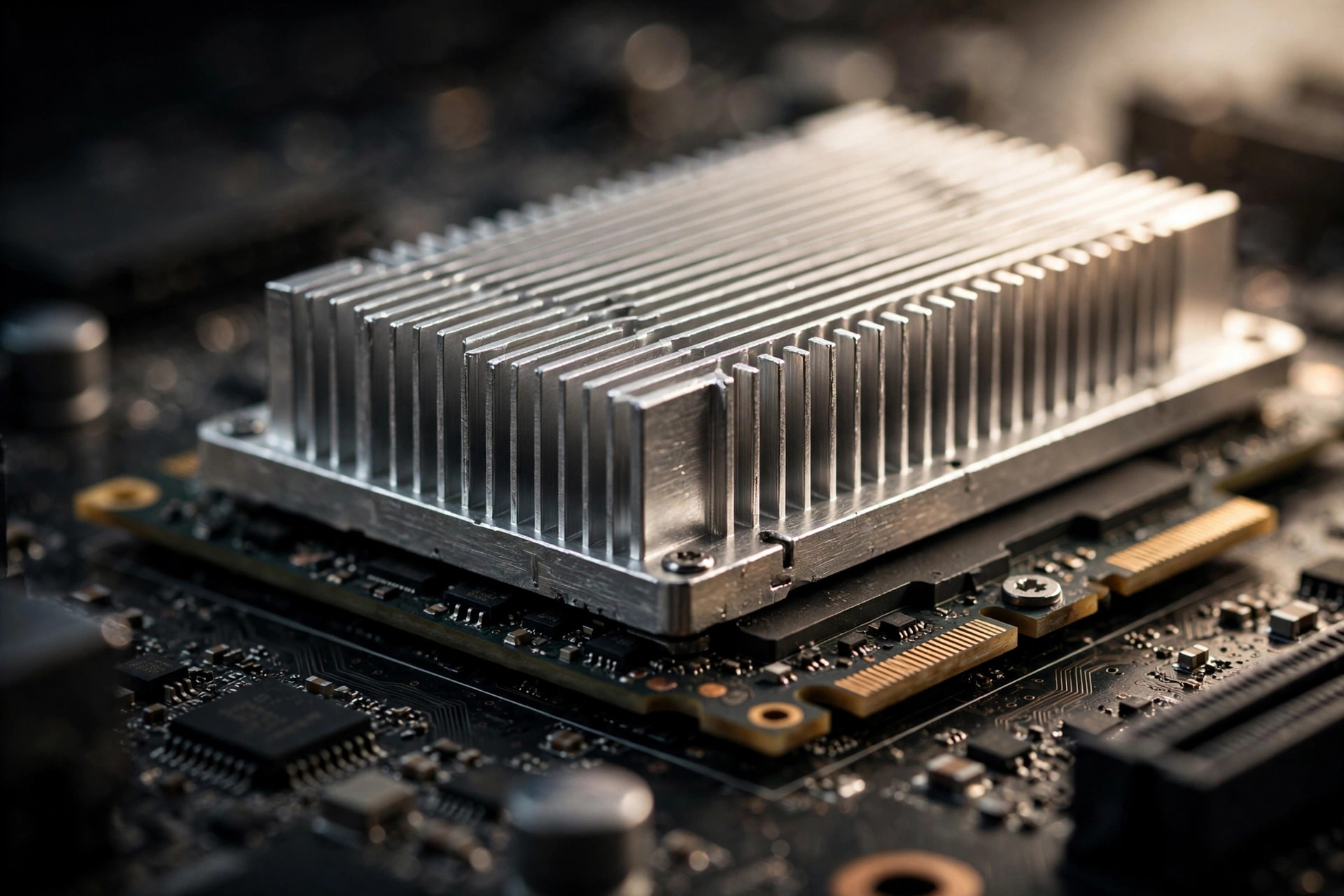
Every SSD launch now comes with thermal warnings, and heatsink-equipped models command a premium. But plenty of drives run perfectly bare. So, do SSDs need heatsinks? The honest answer is that it depends entirely on the generation of the drive, how you use it, and what your motherboard already provides. Here is when cooling matters, when it is already handled, and when it is marketing.
Why modern SSDs run hotter than they used to
To understand the cooling question, it helps to know what actually generates heat inside an NVMe drive. It is not the NAND flash memory that stores your data — it is the controller, the small processor that manages reads, writes, wear leveling and error correction. As interface speeds have climbed, controllers have had to work harder and faster, and their power draw has followed: a typical Gen3 drive sips 4–6W, a flagship Gen4 pulls 7–9W, and a Gen5 controller can exceed 10W and sometimes touch 14W under full load.
That heat has nowhere obvious to go. An M.2 stick has almost no surface area, and in many builds it sits sandwiched between a hot GPU and a warm motherboard. When the controller's temperature sensor reads roughly 75–85°C (the exact threshold varies by model), the firmware protects the drive by thermal throttling — deliberately slowing transfers. In practice, throttling shows up as a drive that benchmarks beautifully for 30 seconds and then drops to half speed or worse during a long file copy, game install or render. This is the behavior heatsinks exist to prevent.
Gen5: yes, you need cooling
PCIe 5.0 controllers are hot — sustained 14,000MB/s transfers can push controller temperatures past 80°C without a heatsink, at which point thermal throttling cuts speeds dramatically. For any Gen5 drive like the FURY Renegade G5, a proper heatsink is not optional: use your motherboard's integrated M.2 heatsink or buy the heatsink version of the drive.
It is worth being specific about what "proper" means here. Gen5 drives need a heatsink with real fin area and a thermal pad that makes firm contact with the controller — not a thin decorative plate. If your motherboard ships with a chunky M.2 heatsink (most mid-range and high-end boards from the last few years do), that is usually the best option, because it is engineered for the slot's airflow path. If it does not, buying the heatsink version of the drive is the safer move than rolling your own, since the factory unit is validated for that drive's heat profile.
High-end Gen4: probably covered already
Flagship Gen4 drives (7,000MB/s class) get warm under sustained writes but rarely throttle in a case with decent airflow — and most modern motherboards include M.2 heatsinks that handle them comfortably. If your board has one, use it; the few degrees it shaves off extend NAND longevity.
There is a nuance worth knowing: the NAND flash itself actually prefers to be warm when being written to, while the controller wants to stay cool. A good motherboard heatsink covers the whole drive and cools both, which is fine — the point is simply that you should not overthink it. Remove the plastic film from the thermal pad (a classic first-build mistake), seat the drive, screw the heatsink down evenly, and a drive in the best NVMe SSD 2026 conversation will run at full speed for as long as your workload demands.
Mainstream Gen4 and laptops: skip it
Mid-range Gen4 and all Gen3 drives sip power by comparison. Their controllers simply do not generate enough heat to throttle in normal conditions, and spending money on aftermarket cooling for them buys you nothing measurable.
In laptops, aftermarket heatsinks usually do not even fit — and manufacturers have already validated the thermal design. Laptop SSDs are specced, tested and warranted for the exact thermal environment they ship in. Adding a chunky heatsink where it does not fit risks worse contact and higher temperatures: a heatsink that presses against the bottom panel or neighboring components can insulate the drive rather than cool it. The one exception is a DIY external enclosure or a mini-PC with a bare M.2 slot and zero airflow — there, even a thin graphene or copper shim can help, but that is an edge case, not the norm.
What actually makes a good heatsink
Surface area and mounting pressure matter more than RGB. A simple finned aluminum heatsink with a proper thermal pad beats a flat "gaming" plate. Fins multiply the surface area exposed to airflow; the thermal pad is the bridge that moves heat from the controller to the metal. A thick pad with poor contact is worse than a thin pad seated firmly — when you install one, you want to see the pad compress slightly and evenly across the controller.
Material matters less than marketing suggests. Aluminum is the standard and perfectly adequate; copper conducts heat better but is heavier, pricier, and rarely changes the outcome on a drive that was already going to be fine. Active cooling — tiny fans on M.2 heatsinks — exists for Gen5 drives in airflow-starved cases, but adds noise and a failure point; fix your case airflow first. And one warning that bears repeating: never stack a motherboard heatsink on top of a drive that already has its own — the double sandwich traps heat and can perform worse than either alone. Pick one cooling solution per drive. (Still deciding whether the Gen5 premium is worth paying at all? Our companion piece on whether PCIe Gen5 SSDs are worth it in 2026 breaks down the real-world gains beyond the headline numbers.)
Do SSDs need heatsinks? The 2026 verdict by drive type
| Drive type | Typical peak speed | Heatsink needed? | What to do |
|---|---|---|---|
| PCIe Gen5 (e.g. 14,000MB/s class) | 12,000–14,800MB/s | Yes | Use the motherboard M.2 heatsink or buy the heatsink version |
| Flagship Gen4 (7,000MB/s class) | 7,000–7,400MB/s | Recommended | Use the motherboard's integrated heatsink |
| Mainstream Gen4 | 3,500–5,000MB/s | Usually not | Bare is fine with normal case airflow |
| Gen3 / SATA | Up to 3,500MB/s | No | Skip it entirely |
| Laptop SSD (any Gen) | Varies | No | Trust the manufacturer's thermal design; aftermarket rarely fits |
| PS5 / console expansion | 5,500MB/s+ | Required by Sony | Heatsink mandatory for PS5 slot compliance |
Heat, endurance, and your data
Cooling is usually framed as a performance question, but there is a longevity angle too. NAND flash degrades with every write, and elevated temperatures accelerate wear and shorten data retention — the period a drive can hold data unpowered. A drive that spends its life running hot will not just throttle; over years, it can chew through its endurance rating faster than a cooler-running identical drive. If you are interested in how endurance ratings work and what they mean for heavy workloads, our deep dive on SSD endurance in the AI era explains TBW and DWPD in plain terms.
That said, keep perspective: no heatsink replaces a backup strategy. Heat-related failure is rare; accidental deletion, ransomware and plain old drive failure are not. If the data matters, the 3-2-1 rule still applies — three copies, two different media types, one offsite — and that offsite copy is usually a cloud backup service. And if the worst happens, know that data recovery from a failed SSD is significantly harder and more expensive than from a hard drive, because of encryption and wear-leveling complexity. Cooling protects performance; backups protect data.
Who should buy a heatsink — and who should skip it
Buy one (or use the motherboard's) if: you own a Gen5 drive; you run sustained heavy writes on a flagship Gen4 (video capture, large dataset work, frequent full-drive clones); your case has poor airflow; or you are installing an SSD in a PS5, where a heatsink is mandatory.
Skip it if: you run a mainstream Gen4 or Gen3 drive; you are on a laptop; your motherboard already has an integrated M.2 heatsink (use that instead of buying another); or the drive already ships with a factory heatsink (do not stack a second one on top).
FAQ
Do SSDs need heatsinks for gaming?
For gaming alone, usually not. Games load in bursts, which rarely sustain the heat needed to trigger throttling — even on Gen5 drives, though a Gen5 drive still benefits from at least the motherboard's heatsink. If your library lives on a Gen4 drive with a board heatsink, you are covered.
Can I use a heatsink from a different drive?
Generally yes, as long as it physically fits the 2280 (or your drive's) form factor and the thermal pad contacts the controller. But do not stack it on a drive that already has a factory heatsink — remove one or the other.
Will removing the SSD's sticker void the warranty?
On most drives, the label acts as a heat spreader and sometimes carries warranty information — leave it on. Modern thermal pads are designed to sit on top of the label. Only remove it if the heatsink manufacturer explicitly instructs you to, and check your drive's warranty terms first.
Do external / portable SSDs need heatsinks?
No — portable SSDs are thermally designed as sealed units, and you cannot add a heatsink to them anyway. What matters for externals is the enclosure's own thermal design: metal bodies that act as heat spreaders sustain speeds far better than plastic ones during long transfers.
Does a heatsink improve SSD lifespan?
Modestly, for hot-running drives. Keeping the controller out of thermal-throttle territory reduces thermal cycling stress, and the few degrees shaved off extend NAND longevity. But the effect is small compared to simply not filling the drive to 95% capacity and keeping backups.
Bottom line: Gen5 needs a heatsink, full stop. Gen4 flagships: use the motherboard's. Everything else: save your money — airflow matters more than aluminum. And whatever you cool, back it up: a heatsink protects your speeds, not your files.