NVMe RAID 0/1 Setup Guide: Speed vs Safety
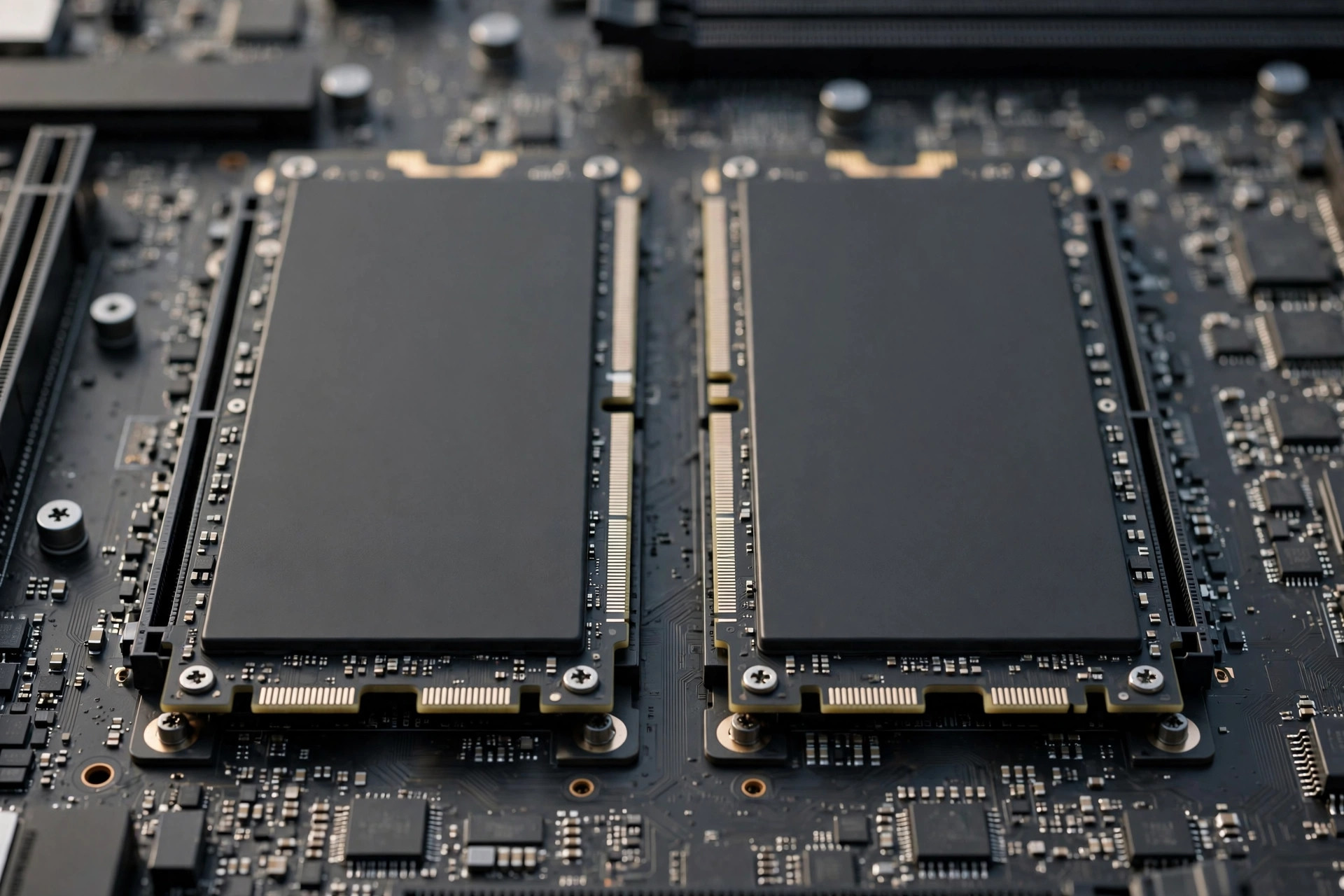
Two NVMe SSDs are fast. Two NVMe SSDs in RAID 0 are, on paper, twice as fast — 24,000 MB/s sequential reads that look spectacular in benchmarks. But paper speed and useful speed are different things, and RAID 1's promise of safety comes with its own fine print. This guide covers NVMe RAID 0 and RAID 1 honestly: what you actually gain, how to set each up on Windows and Linux, and when a single bigger drive is the smarter buy.
RAID levels that matter for NVMe
| Level | How it works | Capacity | Speed effect | Fault tolerance |
|---|---|---|---|---|
| RAID 0 (striping) | Data split across both drives | Sum of both | Up to ~2x sequential | None — one drive fails, all data lost |
| RAID 1 (mirroring) | Identical copy on both drives | Size of one drive | Reads can be faster; writes unchanged | Survives one drive failure |
| RAID 5 / 10 | Striping with parity / mirrored stripes | Varies | Good all-round | Survives one failure (needs 3–4 drives) |
| JBOD (span) | Drives concatenated, no striping | Sum of both | No gain | None |
For a two-drive desktop or workstation setup, the realistic choice is RAID 0 or RAID 1. RAID 5 and 10 need three or four drives and make more sense on dedicated NAS or server hardware with a proper controller.
RAID 0: the speed — and what it actually buys you
Striping splits every file across both drives, so sequential reads and writes can nearly double. Benchmark screenshots of 20+ GB/s are real. The less advertised reality:
Sequential speed doubles; everything else barely moves. Game load times, OS boot, and application launches depend on random 4K read performance and latency, where RAID 0 gains are typically 0–10%. The workloads that genuinely benefit are sequential monsters: 8K video editing timelines, large dataset copies, and scratch disks for rendering.
| Workload | RAID 0 gain (typical) | Worth it? |
|---|---|---|
| Game loading | 0–5% | No |
| OS boot / app launch | 0–10% | No |
| 4K/8K video editing scratch | 40–80% | Yes |
| Large file copies (100GB+) | 60–90% | Yes |
| Dataset / ML data loading | 30–70% | Often yes |
Failure math gets worse. With two drives striped, the array dies if either drive fails — roughly double the failure exposure of a single drive. RAID 0 without a rigorous backup routine is not a performance optimization; it is a data-loss plan. And remember the first rule of fast storage decisions: if you simply need more room rather than more speed, a single larger drive is cheaper and safer — see our 2TB vs 4TB capacity guide before buying a second drive for the wrong reason.
RAID 1: the safety — and its limits
Mirroring writes every byte to both drives simultaneously. One drive can die completely and the system keeps running on the survivor. Read performance can improve slightly since the controller may read from both drives in parallel, but write speed is capped at single-drive speed — every write must complete on both.
The critical misunderstanding: RAID 1 is not a backup. It protects against exactly one thing — a drive dying. It does not protect against accidental deletion (deletes mirror instantly), ransomware (encrypts both copies), filesystem corruption, theft, or fire. A RAID 1 array with no external backup is a machine that can survive a drive failure and nothing else. Pair any RAID setup with a real backup strategy.
Hardware vs software RAID for NVMe
| Approach | Examples | Pros | Cons |
|---|---|---|---|
| Motherboard ("fake") RAID | AMD RAIDXpert2, Intel RST/VMD | Bootable array, OS-independent | CPU overhead, tied to the board, driver quirks |
| Windows Storage Spaces | Built into Windows 10/11 | Easy GUI, flexible, free | Higher overhead, weaker NVMe performance tuning |
| Linux mdadm | Built into the kernel | Fast, reliable, portable between machines | Command-line, not bootable without initramfs setup |
| Dedicated HBA / RAID card | Enterprise controllers | Best performance, cache, battery backup | Expensive, overkill for desktops |
For most desktop NVMe RAID, the practical choice is motherboard RAID if you need to boot from the array, or OS-level software RAID (Storage Spaces / mdadm) for a secondary data volume. Modern CPUs handle software RAID 0/1 with negligible overhead — the old "hardware RAID is faster" wisdom dates from the era of weak CPUs and slow SATA.
Setup: Windows (Storage Spaces)
Step 1 — Back up both drives. Creating the array destroys all existing data on both disks. No exceptions.
Step 2 — Open Storage Spaces. Search "Storage Spaces" in Windows, create a new pool, and select both NVMe drives.
Step 3 — Choose resiliency. "Simple" is RAID 0-style striping; "Two-way mirror" is RAID 1. Name the space and pick a drive letter.
Step 4 — Format and verify. Format as NTFS (or ReFS for mirror), then run a benchmark and a SMART check on both members. Confirm the array reports the expected capacity: ~2x one drive for Simple, ~1x for mirror.
Setup: motherboard RAID (bootable array)
Enter BIOS/UEFI, find the NVMe RAID setting (often under Advanced → AMD PBS or Intel VMD configuration), and switch the SATA/NVMe mode from AHCI to RAID. Save, reboot, and enter the RAID utility (Ctrl+I, Ctrl+R, or a UEFI app depending on vendor). Create the array from the two drives, select the stripe size — 64KB or 128KB is the sane default for general use — and initialize. You will need the RAID driver on a USB stick during Windows installation (load it at the "select drive" screen), or the installer will not see the array.
Caveat: motherboard RAID ties the array to that board's chipset family. If the board dies, recovery on a different board is often impossible — another argument for keeping real backups regardless of RAID level.
Setup: Linux (mdadm)
Install mdadm, then create the array: sudo mdadm --create /dev/md0 --level=0 --raid-devices=2 /dev/nvme0n1 /dev/nvme1n1 (use --level=1 for mirror). Format with mkfs.ext4 or your filesystem of choice, add it to /etc/fstab, and save the array config with mdadm --detail --scan >> /etc/mdadm/mdadm.conf. For a bootable mdadm array you will need to rebuild the initramfs — well documented, but an extra step worth knowing about upfront.
Risks and gotchas nobody mentions
TRIM usually still works on modern software and motherboard NVMe RAID, but verify — without TRIM, write performance degrades over months. Check with the vendor's documentation for your specific chipset.
Thermal load doubles in one spot. Two Gen5 drives striped under a single motherboard heatsink area can overwhelm cooling designed for one drive. If you are striping Gen5 drives, revisit cooling with our Gen5 SSD guide in mind — throttled RAID 0 can end up slower than a single cool drive.
Migration is harder. Moving to a new system? A single drive just moves. A RAID array needs the array metadata, compatible drivers, and both members healthy. If you are currently planning a drive move rather than a RAID build, cloning to a single new SSD is dramatically simpler.
Uneven drives waste potential. RAID 0 with a fast and a slow drive runs at roughly 2x the slower drive for striped portions. Use matched drives — same model and capacity — for predictable results.
Who should build NVMe RAID — and who should buy one big drive
Build RAID 0 if you: do 4K/8K video editing, run sustained sequential workloads (capture, datasets, ML data pipelines), have bulletproof backups, and have verified your cooling can handle two hot drives.
Build RAID 1 if you: run a workstation or small server where downtime costs money, understand it complements (not replaces) backups, and the capacity cost of mirroring is acceptable.
Buy one big drive instead if you: mostly game or do office work, want simplicity and portability, or are chasing benchmark numbers rather than a measured bottleneck. A single 4TB Gen4 drive beats a 2x2TB RAID 0 array on reliability, power, thermals, and simplicity — losing only in sequential benchmarks most users never feel.
Benchmarks vs reality: measured RAID 0 gains in 2026
Synthetic benchmarks tell a flattering story. Real applications tell a more nuanced one. Here is how a two-drive Gen4 RAID 0 array typically compares to a single drive of the same model in measured testing:
| Test | Single drive | RAID 0 (2 drives) | Real gain |
|---|---|---|---|
| CrystalDiskMark sequential read | 7,000 MB/s | 13,200 MB/s | ~89% — the headline number |
| CrystalDiskMark 4K random read | 85 MB/s | 92 MB/s | ~8% — barely measurable |
| Game level load (large title) | 11.2 s | 10.8 s | ~4% — imperceptible |
| 100GB file copy, same array | — | — | N/A — copies within one volume |
| 100GB copy to external NVMe | 74 s | 41 s | ~45% — genuinely useful |
| 4K video export to same volume | 8:10 | 6:55 | ~15% — meaningful over a workday |
The pattern is consistent: RAID 0 transforms workloads that move huge sequential streams and barely touches everything else. The 4K-video export gain is the interesting middle case — 15% faster exports, repeated across dozens of exports a week, is real productivity. The game-load gain is the cautionary tale — 0.4 seconds for double the failure risk and double the cost is a bad trade by any measure.
When evaluating your own use case, benchmark the bottleneck you actually have, not the drive in isolation. If your timeline exports are CPU-bound, faster storage changes nothing. Profile first with the OS performance monitor during a real task; only stripe when the disk queue is the thing holding you back.
RAID on laptops and Mini-PCs: what is actually possible
Most laptops expose a single M.2 slot, which ends the RAID conversation immediately. But a growing number of mobile workstations and high-end gaming laptops ship with two M.2 slots, and Mini-PCs increasingly offer dual slots too. The constraints are different from desktops:
Thermals dominate. Two NVMe drives in a laptop chassis share a tiny thermal envelope. Striped Gen4 drives under sustained load can saturate the cooling and throttle below single-drive speeds — the array becomes slower than its parts. If you stripe in a small chassis, choose cooler-running drives over flagship speed demons.
BIOS support varies wildly. Some mobile platforms expose NVMe RAID in firmware; many do not, leaving OS-level striping (Storage Spaces, LVM striping, or APFS/Data Protection equivalents) as the only option — fine for data volumes, unavailable for boot.
Battery and power. Two active NVMe drives draw meaningfully more power at load and idle. On battery-powered machines this is a real cost; RAID in a laptop is a plugged-in-desk-mode feature, not a mobile one.
The honest summary: RAID makes the most sense where thermals, power, and space are abundant — desktops and workstations. In small machines, a single large, cool, efficient drive is almost always the better engineering choice.
Filesystem and partition alignment for striped arrays
A striped array performs best when the filesystem's allocation units align sensibly with the RAID stripe size. The details are less scary than they sound:
Stripe size: 64KB or 128KB for general use. Smaller stripes (16–32KB) suit databases and heavy random I/O; larger stripes (256KB+) suit video and sequential archives. For mixed desktop/workstation use, 64KB is the default that is rarely wrong. Changing stripe size later requires rebuilding the array, so choose deliberately upfront.
Let the OS handle alignment. Modern Windows, Linux, and macOS partitioners align partitions to 1MB boundaries automatically, which is a multiple of every common stripe size — alignment issues are largely a solved problem unless you are hand-partitioning with ancient tools.
Filesystem choice matters at the margins. NTFS is the pragmatic Windows default; ReFS adds integrity checking that pairs well with mirrored arrays but brings compatibility quirks. On Linux, ext4 is the safe default while XFS excels at the large sequential files RAID 0 users tend to create. Format with 4K clusters/blocks unless you have a specific reason otherwise — it matches NAND page sizes and keeps the controller happy.
When RAID 1 makes sense for home users
RAID 1 is usually framed as a business technology, but three home scenarios justify it:
Photo and video archives. A photographer's working library — tens of thousands of RAW files representing years of work — is exactly the kind of irreplaceable-but-actively-used data where surviving a drive failure without downtime matters. Mirror the working library; back up the mirror offsite.
Home servers that the family depends on. If the household's documents, media server, and smart-home configuration live on one machine, a dead drive means a household outage. RAID 1 turns a drive failure from a weekend project into a notification you handle at leisure.
Small business workstations. A freelancer whose income stops when the workstation stops should value uptime. The cost of a second drive is trivial against a lost billable day.
In all three cases the same caveat applies: RAID 1 is uptime insurance, not backup. Pair it with versioned offsite backups and it becomes part of a genuinely robust data strategy rather than a false sense of security.
RAID monitoring: what to watch monthly
An array does not maintain itself. Once a month, spend five minutes on this routine:
Check array status. In Storage Spaces, open the control panel and confirm the pool reports "OK." In mdadm, cat /proc/mdstat should show both members active and synced — a drive marked faulty or a resync in progress needs immediate attention. Motherboard RAID users should check the vendor utility or the BIOS RAID screen.
Check per-drive SMART. Percentage used, temperature, and reallocated counts for each member. An array masks individual decline — the whole point of this check is to catch the member that is quietly dying before it takes the array with it.
Verify backups actually ran. RAID is not backup, so confirm the real backup completed: check the backup software's last-successful timestamp, not your memory of setting it up. A backup job that silently failed three months ago is the classic companion disaster to a RAID failure.
Glance at temperatures under load. If you added a second drive since the last check, or summer has arrived, run a sustained workload and confirm neither drive is throttling. Thermal problems develop gradually as dust accumulates and ambient temperatures rise.
FAQ
Can I RAID 0 my boot drive?
Yes, via motherboard RAID — but think twice. The boot-time and app-launch gains are minimal, while you double failure exposure on the volume containing your OS. Most builders stripe a secondary data/scratch volume and keep the OS on a single drive.
Do both drives need to be identical?
Not strictly, but matched drives are strongly recommended. The array is limited by the smaller capacity and the slower drive's speed; mismatched pairs waste whatever the better drive offers.
Can I add a third drive to RAID 0 later?
With most consumer implementations, no — you cannot expand a RAID 0 array in place. You would back up, rebuild a three-drive array, and restore. Plan the drive count upfront.
Does RAID 0 void SSD warranties?
No. Running drives in RAID is a normal supported configuration and does not affect warranty coverage. Note that TBW-based warranty limits still apply per drive.
Is motherboard RAID or Windows Storage Spaces better for NVMe?
For a bootable array, motherboard RAID is the only option of the two. For a secondary data volume, Storage Spaces is easier to manage and portable between boards, while mdadm on Linux outperforms both. Choose by whether the array must boot.
Can I mix Gen3 and Gen4 drives in RAID 0?
Technically yes, but the array's striped performance tracks the slower drive — you pay for Gen4 speed you will never see in the striped portions, and capacity is limited by the smaller drive. Matched drives are strongly recommended; if you already own mismatched drives, consider using them as separate volumes instead of forcing them into an array.
Does RAID affect TRIM?
On modern platforms, usually not — current AMD and Intel NVMe RAID implementations, Windows Storage Spaces, and Linux mdadm all pass TRIM through correctly. But "usually" is doing work in that sentence: verify for your specific chipset and driver version, because without TRIM, write performance degrades steadily over months of use. The vendor's documentation or a quick fstrim -v test on Linux confirms it.
How do I monitor individual drive health inside an array?
This is the operational detail most guides skip. Motherboard RAID utilities often hide member SMART data behind the array abstraction — check whether your vendor's tool exposes per-drive health. On Linux with mdadm, smartctl reads member drives directly (smartctl -a /dev/nvme0n1 works regardless of array membership). Schedule the same percentage-used and temperature checks you would for standalone drives; an array is only as healthy as its weakest member, and RAID gives you no warning before that member fails.
What happens if I move a RAID array to a new motherboard?
For OS-level arrays (Storage Spaces, mdadm, LVM): usually fine — move both drives, and the OS reassembles the array from its metadata. For motherboard RAID: often painful or impossible, since the metadata format is vendor- and chipset-specific. This portability gap is one of the strongest arguments for OS-level RAID on secondary volumes, reserving motherboard RAID strictly for arrays that must boot.