Laptop RAM Upgrade Guide: SODIMM vs Soldered Memory
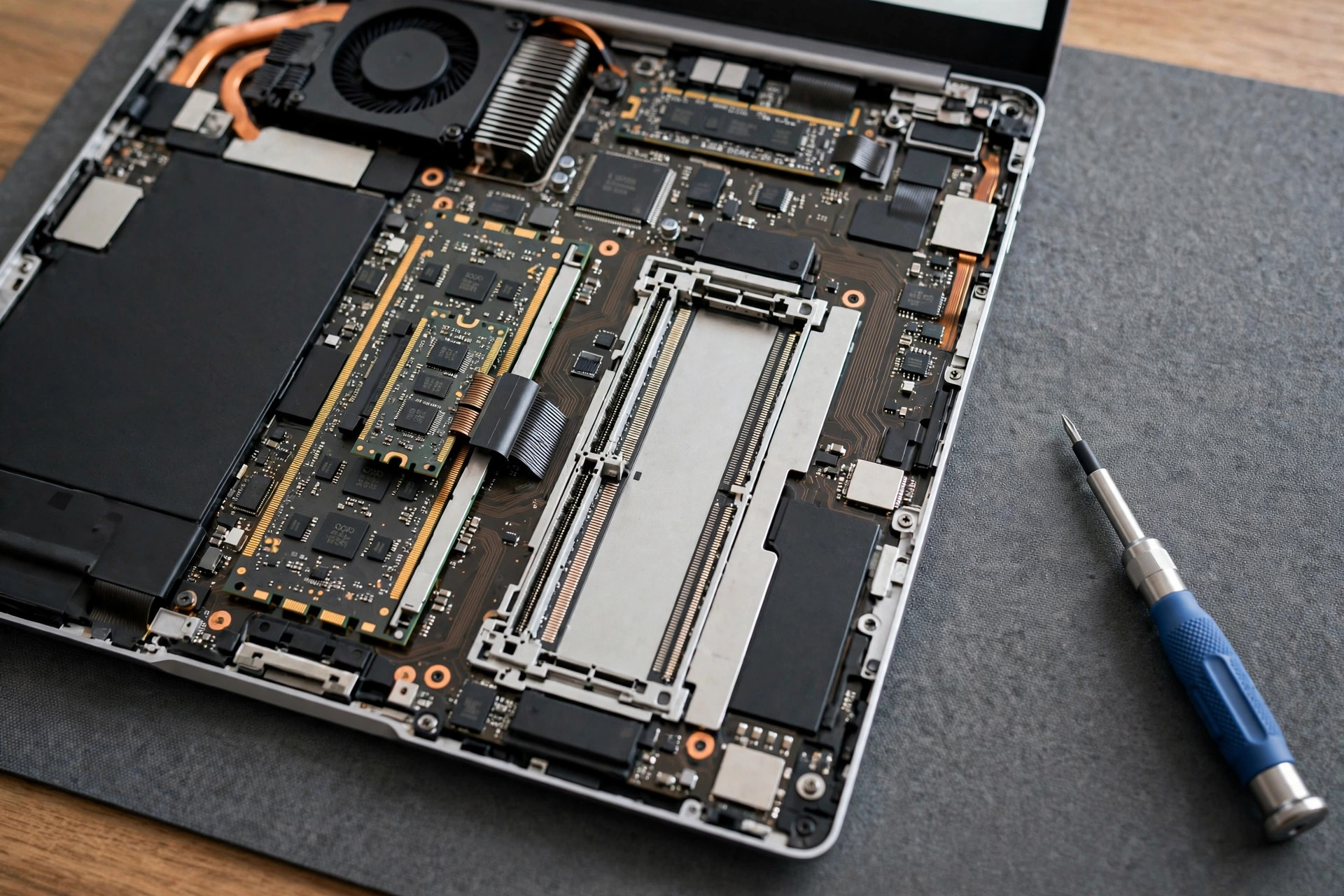
That laptop that felt fast two years ago is now gasping every time you open a second Electron app — and the culprit is often memory, not the processor. A RAM upgrade is the cheapest meaningful performance intervention available for a laptop, frequently costing less than a tenth of a replacement machine. But in 2026, the upgrade path is a minefield: many laptops now ship with memory soldered directly to the motherboard, making upgrades impossible. This guide explains how to tell what your laptop has, what SODIMM vs soldered means for you, and how to upgrade when the option exists.
SODIMM vs soldered: the fundamental split
SODIMM (Small Outline DIMM) is the laptop memory module standard — a removable stick, roughly half the length of a desktop DIMM, that slots into sockets on the motherboard. If your laptop has SODIMM slots, upgrading is a 15-minute job with a screwdriver: open the bottom panel, swap or add sticks, close it up.
Soldered (onboard) memory is memory chips permanently attached to the motherboard. It cannot be upgraded, replaced, or repaired without board-level rework. Manufacturers prefer it because it is thinner, uses slightly less power, and — not coincidentally — forces buyers to choose (and pay for) their final memory configuration at purchase.
| Feature | SODIMM (socketed) | Soldered (onboard) |
|---|---|---|
| Upgradable | Yes — user-serviceable | No |
| Typical laptops | Gaming, mobile workstations, budget models | Ultrabooks, MacBooks, thin-and-lights |
| Max practical capacity | 64GB (2×32GB DDR5 SODIMM) | Set at purchase (8–64GB) |
| Speed ceiling | Slightly lower (socket overhead) | Higher (shorter traces, e.g. LPDDR5X-8400+) |
| Repair if faulty | Replace the stick | Motherboard replacement |
| Resale flexibility | Upgrade before selling | Fixed — priced in |
There is also a hybrid: many thin laptops ship with one soldered bank plus one SODIMM slot (e.g., 8GB soldered + one empty slot). This is a reasonable compromise — you can add a stick later — but note that mismatched soldered-plus-SODIMM configurations run in a flexible dual-channel mode that is slightly less efficient than matched pairs.
Brand-by-brand upgradability landscape in 2026
Upgradability tracks almost perfectly with thickness and target buyer. Gaming laptops and mobile workstations are the last reliable stronghold of SODIMM sockets: ASUS's ROG Strix and TUF lines, Lenovo's Legion, HP's Omen, MSI's Katana and Creator Pro lines, and Acer's Nitro series almost all still ship with two SODIMM slots. Business-class machines are mixed — the larger ThinkPad P-series workstations and some Dell Precision models still offer slots, but the mainstream ThinkPad T-series has largely gone soldered, and Dell's Latitude and HP's EliteBook lines vary by model year, so verify each configuration individually.
On the soldered side sit virtually all ultrabooks and thin-and-lights: the Dell XPS 13 and 14, Lenovo Yoga and ThinkPad X1 Carbon, HP Spectre, ASUS Zenbook, and every Apple silicon MacBook have fully soldered memory. The notable exception is Framework's modular laptops, designed for user serviceability with socketed memory even in thin chassis.
Read spec sheets literally: "onboard", "soldered", or "LPDDR5X" means no upgrade is possible; "SODIMM", "2x SODIMM", or "user-replaceable" means slots exist. Listings that state only a capacity ("Memory: 16GB") should be treated as soldered until proven otherwise — manufacturers that offer sockets advertise the fact.
How to check what your laptop has
Before buying anything, determine your machine's memory architecture. In order of reliability:
1. Check the manufacturer's spec page. Search "[your model] specifications memory" — look for "SODIMM", "onboard", "soldered", or "user-replaceable". This is the authoritative answer. 2. Use Crucial's compatibility tool (crucial.com) — enter your exact model; it reports slot count, maximum capacity, and compatible kits. 3. Check in Windows: Task Manager → Performance → Memory shows "Slots used" (e.g., "1 of 2") — if it reports slots, you have SODIMM sockets. 4. Physical inspection as a last resort: power off, remove the bottom panel screws, and look for the memory slots — but check warranty terms first, since some manufacturers consider panel removal a warranty event.
5. Check from Linux (bonus): if you dual-boot, sudo dmidecode -t memory reports each slot's status — "Unknown" or empty locator fields for unpopulated slots, and it distinguishes soldered banks from socketed ones on many machines. It is the most honest answer when Windows Task Manager is ambiguous.
Diagnosing memory pressure before you buy
Not every slow laptop is starved of RAM, and buying memory for a machine bottlenecked elsewhere is money wasted. Confirm the constraint first — it takes ten minutes.
In Windows Task Manager (Ctrl+Shift+Esc), go to Performance > Memory and watch "In use" during your normal workload. Sustained readings above 85% — or a "Committed" figure exceeding physical RAM — mean Windows is paging to disk, and more memory will help. In Resource Monitor, the "Hard faults/sec" counter is the definitive signal: persistent hard faults mean constant page-file fetching, the classic signature of memory pressure. Stutter that appears when you open new tabs or applications is the real-world version of the same signal.
Rule out the impostors first. Memory sitting at 45% while everything crawls points elsewhere: 100% disk utilization means slow storage (fix with an SSD); CPU pinned at 100% with loud fans means thermal throttling (clean vents, replace thermal paste); one application eating gigabytes means a software problem, not a hardware one. The checklist below maps symptoms to causes.
| Symptom | Likely bottleneck | Fix |
|---|---|---|
| Memory at 85%+; system slows when opening more apps or tabs | RAM capacity | Upgrade memory |
| Disk at 100% in Task Manager; slow boot and file operations | Storage (spinning HDD or nearly full SSD) | Upgrade to an SSD; free up space |
| CPU at 100% with high fan noise and heat under sustained load | Thermal throttling or CPU limit | Clean vents; replace thermal paste; cooling pad |
| One application consumes most of the RAM | Software (memory leak or bloated tab) | Update or replace the app; audit extensions |
| Memory and disk fine, but games stutter at high settings | GPU | Lower graphics settings; no RAM fix |
Choosing the right SODIMM kit
Laptop memory comes in two DDR5 SODIMM flavors that are not interchangeable: standard DDR5 SODIMM (1.1V, socketed, upgradable) and LPDDR5/LPDDR5X (low-power, almost always soldered — if your laptop uses LPDDR, you cannot upgrade, full stop). Check which one your machine takes before ordering.
For DDR5 SODIMM upgrades, the buying logic mirrors desktops but with lower ceilings: DDR5-5600 SODIMM is the current sweet spot for compatibility and price; DDR5-5200 is fine if cheaper. Laptop BIOSes rarely expose XMP/EXPO, so buy JEDEC-standard kits — rated speeds beyond JEDEC usually cannot be enabled on laptops anyway. Match capacity in pairs for dual-channel operation (2×16GB rather than 1×32GB), and when adding to an existing stick, match the speed and timings of what is already installed. If you are unsure how much memory your workloads need, our 2026 RAM sizing guide applies to laptops just as well as desktops.
LPDDR5X vs DDR5: the full technical comparison
The DDR5/LPDDR5X split is the engineering reason soldered memory exists — worth understanding what each design actually trades away.
DDR5 SODIMM is the traditional architecture: the CPU's memory controller talks to removable modules through sockets. It runs at 1.1V, typically 4800–5600 MT/s in 2026 laptops. The socket adds electrical overhead — longer traces, connector impedance — capping practical speeds and costing a little power. The payoff: interchangeable modules, capacity that can change over the machine's life, and a failed stick that is a cheap replacement rather than a motherboard swap.
LPDDR5X is a different physical design, not a faster DDR5. Chips sit millimeters from the processor on short, tuned traces, reaching 7500–9600 MT/s — speeds sockets cannot carry. Core voltage is roughly 0.5V with aggressive power-down states, which is why thin LPDDR5X laptops post noticeably better battery life. The cost: soldered chips cannot be upgraded or replaced, locking your capacity decision to the day you buy.
Neither is better in the abstract. For a desk-bound gaming laptop or workstation, DDR5's slightly lower bandwidth is irrelevant next to future expansion. For a 1kg ultrabook, LPDDR5X is the better engineering choice — thinness, battery life, and bandwidth the socketed design cannot match. Judge the memory by the machine it ships in.
The 2026 market reality for laptop memory
Two trends make this guide more urgent than it used to be. First, the soldered-memory takeover: each generation, more models — including mainstream thin-and-lights that used to offer slots — move to soldered LPDDR. If upgradability matters to you, it is now a feature you must actively shop for, not assume. Gaming laptops and mobile workstations remain the stronghold of SODIMM slots.
Second, DRAM prices. With memory costs dramatically elevated, the manufacturer's soldered-memory upsell (often $200+ to go from 16GB to 32GB at purchase) stings more than ever — while a SODIMM kit you install yourself typically costs far less for the same capacity. When comparing two laptops, factor the total cost of your target memory configuration, not just the base price. Our breakdown of the 2026 memory price surge explains the market forces behind these numbers.
When to upgrade vs when to buy new
A RAM upgrade makes sense only when the rest of the machine still has life in it.
Age and platform. A 3–5-year-old laptop with a competent CPU (roughly Intel 11th-gen or Ryzen 5000 and newer) is a prime candidate: the processor is still fast enough, so memory is the binding constraint. On a 7–8-year-old dual-core machine with no NVMe slot, an upgrade postpones the inevitable by months, not years — save for a replacement.
Cost math. A 32GB DDR5 SODIMM kit costs well under a tenth of a comparable new laptop, so when memory is the only shortfall, the upgrade wins on economics every time. But if the wish list is longer — RAM plus a bigger SSD plus a dying battery — add up the parts: once the refresh bill passes 30–40% of a new machine's price, replacement delivers better value per dollar, plus a fresh warranty.
The RAM+SSD combo refresh. The highest-value intervention for an aging laptop is rarely RAM alone. Pairing a memory upgrade with a move from a spinning hard drive (or nearly full 256GB SSD) to a roomy NVMe SSD makes machines that feel a decade old feel current — boot times, app launches, and multitasking all improve at once. If you can only do one, fix whichever bottleneck the diagnosis points at first.
Soldered machines. If the memory is soldered and insufficient, there is no upgrade path — the decision is made for you. Sell or repurpose the machine, and buy the next one with the memory it will need for its entire lifespan, not just today.
Step-by-step: performing the upgrade
1. Buy the right kit — confirmed via the manufacturer's specs or Crucial's tool. 2. Power down fully and unplug; on many laptops, hold the power button 10 seconds after shutdown to drain residual charge. 3. Ground yourself — touch a metal chassis part periodically, or use an anti-static wrist strap. 4. Remove the bottom panel — keep track of screw lengths (they often differ). A plastic pry tool prevents case damage. 5. Release the old sticks by pushing the side clips outward; they pop up at an angle. 6. Seat the new sticks at the same angle, press down until the clips snap. 7. Reassemble and boot — first boot may take longer while the board trains the new memory. 8. Verify in Task Manager or CPU-Z that the full capacity is recognized and running in dual-channel mode.
Common mistakes
Buying the wrong DDR generation. DDR4 and DDR5 SODIMMs have different notch positions and are electrically incompatible — a DDR4 stick cannot seat in a DDR5 slot, and forcing it damages both. Confirm your machine's generation before ordering; if it uses LPDDR5X, there is no SODIMM to buy at all.
One stick instead of a matched pair. Two matched sticks in dual-channel mode deliver roughly 10–20% more memory bandwidth than a single stick of the same total capacity — noticeable in integrated-graphics performance. Prefer 2×16GB over 1×32GB unless you are deliberately keeping a slot free.
Ignoring the chipset's speed ceiling. Laptop memory controllers top out at a rated speed (often DDR5-5200 or 5600). A DDR5-6400 kit simply downclocks — harmless, but you paid for speed you cannot use. Buy at or just below the platform's ceiling and put the savings toward capacity.
Static discharge. One static zap can kill a module or the motherboard slot. Work on a hard table, not carpet; touch grounded metal before handling sticks; hold modules by the edges, never the gold contacts. A wrist strap costs a few dollars and removes the risk.
Stripped screws. Use the correct size driver — a #0 Phillips that almost fits is how screws get stripped. Apply firm downward pressure while turning, organize screws by length (long screws in short holes can crack the board), and stop at the first sign of resistance on reassembly.
What to do with your old sticks
The removed modules are still functional hardware — don't bin them.
Sell them. Used SODIMM kits hold value well, especially DDR5. List the exact part number, capacity, and speed on your local marketplace, with a CPU-Z SPD-tab screenshot as proof of specifications. RAM holds no data once powered off, so there is nothing to wipe — photograph the labels clearly for compatibility checks.
Repurpose them. A spare 8GB or 16GB stick makes a fine diagnostic spare (swapping in a known-good stick is the fastest way to test suspected memory faults), a donation to a friend's aging laptop, or an upgrade for a second machine in the household.
Keep them for warranty claims. If the laptop is still under warranty, store the originals in an anti-static bag — some manufacturers require the machine returned in factory configuration for service.
Only a genuinely faulty stick belongs in e-waste: modules contain small amounts of lead solder and go to electronics recycling, not landfill. Most electronics retailers accept them free of charge.
Who it's for / who should skip it
Upgrade if: your laptop has SODIMM slots and you are running 8GB (the single most transformative sub-$100 upgrade in computing); you regularly see 85%+ memory utilization; or you bought a gaming/workstation laptop with slots specifically to expand later. Also consider it before replacing an otherwise healthy machine — a RAM plus SSD upgrade can extend a laptop's useful life by years.
Skip it (or buy differently) if: your memory is soldered — no upgrade is possible, so put the money toward your next machine and buy the memory configuration you will need for its whole lifespan; your laptop already has 16GB+ and your slowdowns come from a spinning hard drive or thermal throttling (diagnose first); or the machine is a thin ultrabook where even panel removal risks damage — weigh the gains against the risk.
FAQ
How do I know if my laptop RAM is soldered?
Check the manufacturer's specification page for your exact model — it will say "onboard", "soldered", or "SODIMM". In Windows, Task Manager → Performance → Memory shows "Slots used"; if it reports slots (e.g., "1 of 2"), you have upgradable SODIMM sockets.
Can I mix different RAM brands or speeds in a laptop?
It usually works — the system runs all sticks at the speed of the slowest one — but matched pairs (same brand, speed, timings, capacity) are more stable and guarantee proper dual-channel operation. When adding to an existing stick, at minimum match the DDR generation and speed.
Is 16GB enough for a laptop in 2026?
For general use — office work, browsing, streaming — yes, 16GB remains comfortable. For development, creative work, or heavy multitasking, 32GB is the safer buy, especially on soldered machines where you cannot add more later.
Will upgrading laptop RAM void my warranty?
It depends on the manufacturer. Many gaming and business laptop makers explicitly allow user memory upgrades; some ultrabook makers treat any disassembly as a warranty event. Check your warranty terms before opening the machine — and keep the original sticks in case you need warranty service.
What is CAMM2 and should I wait for it?
CAMM2 is a new flat memory module standard designed to replace SODIMM in thin laptops — thinner than sockets, faster than SODIMM, and still user-replaceable. Adoption is just beginning in 2026. Do not delay a needed upgrade waiting for it; buy for the machine you have now.
Can I add RAM to a laptop with soldered memory?
No. Soldered memory is permanently attached to the motherboard with no slot to add to — USB "RAM boosters" and SD-card paging tricks do not add real memory. Either manage with what you have (fewer background apps, lighter software) or replace the machine, and buy the next one with enough memory for its whole lifespan.
Does RAM speed or capacity matter more in a laptop?
Capacity, by a wide margin: 8GB to 16GB transforms a struggling machine, while DDR5-4800 to 5600 at the same capacity yields single-digit gains. The exception is dual-channel setup — two matched sticks beat one stick of equal capacity regardless of speed, so prefer a matched pair over a faster single.
How much RAM can my laptop actually support?
Whichever is lower: slots times the largest stick the chipset accepts. Most dual-slot DDR5 laptops support 64GB (2×32GB); some newer platforms take 48GB sticks for 96GB. Use the manufacturer's official maximum as the safe ceiling when buying — exceeding it sometimes works, but isn't guaranteed.
Should I upgrade RAM or the SSD first?
If the laptop still has a spinning hard drive, the SSD upgrade transforms it more and comes first. If it already has an SSD and Task Manager shows memory pinned above 85%, RAM is next. Doing both is the classic budget refresh that keeps a 4–5-year-old laptop competitive.